


A computer can look right on a product page and still be awkward in the place you plan to use it. The useful first question is not which model has the longest feature list, but what your desk, routine and screen needs actually allow.
We reviewed current product information on HP store Australia and grouped the decision into three practical paths: an all-in-one for a fixed shared space, a laptop for moving between locations, or a compact desktop paired with a display you choose. The recommendations below focus on how each form factor fits a routine, then what to verify on the Australian listing.
Product names and specifications in this guide come from the store’s product pages. Configurations and availability can change, so confirm the live listing before choosing.
Some links in this article are affiliate links: if you make a purchase through them, we may receive a small commission.
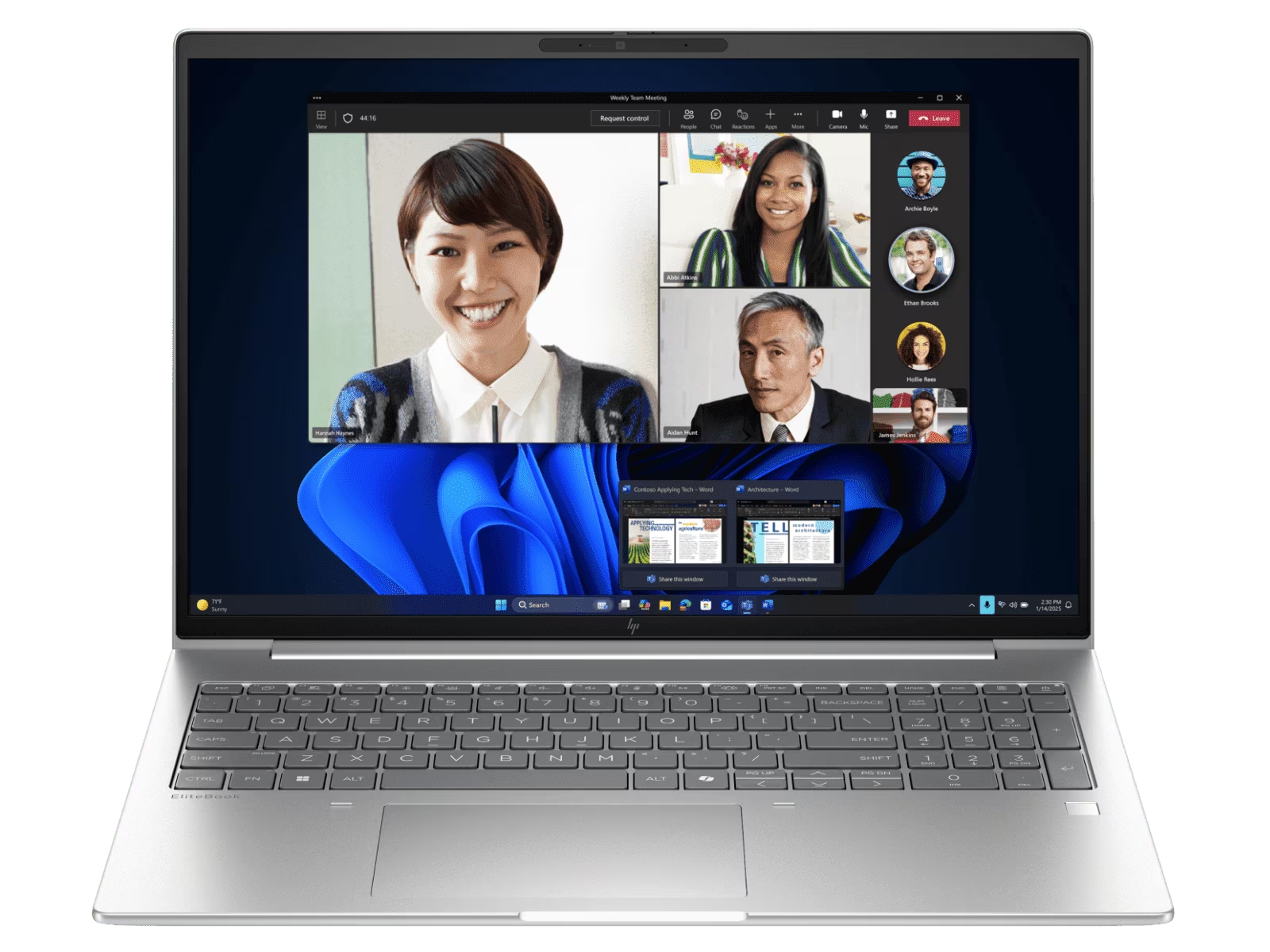
Before you read on: Start with the space you have and whether you need to carry the computer. The HP 23.8 inch All-in-One Desktop PC AI 24-cr2000a keeps the screen and computer together, while the HP EliteBook 6 G1i 16-inch Notebook AI PC travels with you; the HP ProBook 4 G1i 16-inch Notebook AI PC is another mobile option to compare by configuration.
How should your workspace shape the shortlist?
Measure the working area before comparing processor names. Include room for the stand, keyboard, mouse, cables and anything else that regularly shares the desk. A fixed study space can make an all-in-one convenient because its screen is part of the computer. A small desk with an existing monitor may favour a compact desktop instead, while a household that packs away equipment each evening may need a notebook.
Write down three constraints before opening product pages:
- Available surface: note desk width and depth, plus where cables can reach.
- Screen arrangement: decide whether you need one built-in display or already own a monitor.
- Movement: count how often the computer leaves its main work spot.
- Shared use: consider whether another person needs quick access to the same setup.
These simple checks keep the shortlist grounded. HP store Australia presents personal and business computers across different form factors, so a category label alone will not tell you whether an individual listing includes the screen, which accessories are in the box, or what ports it provides. Open each exact configuration and confirm those details before comparing.
When does an all-in-one make sense for a shared desk?
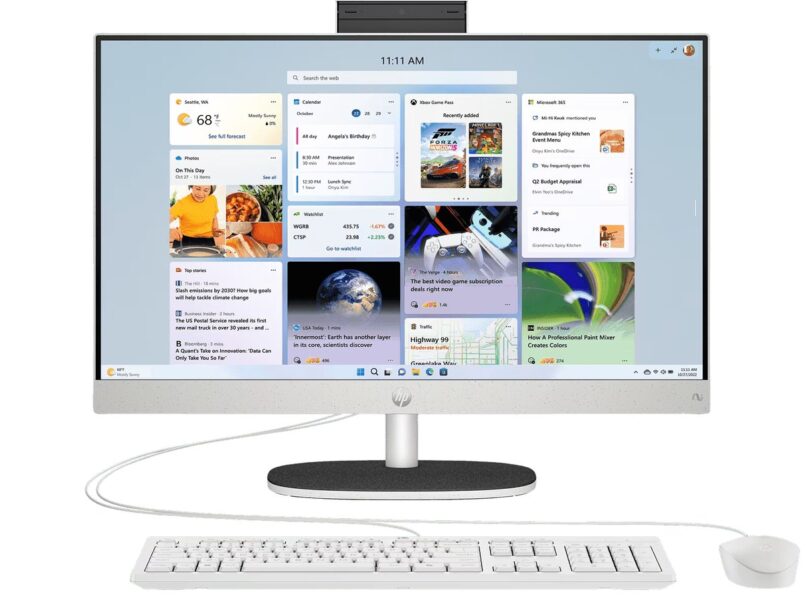
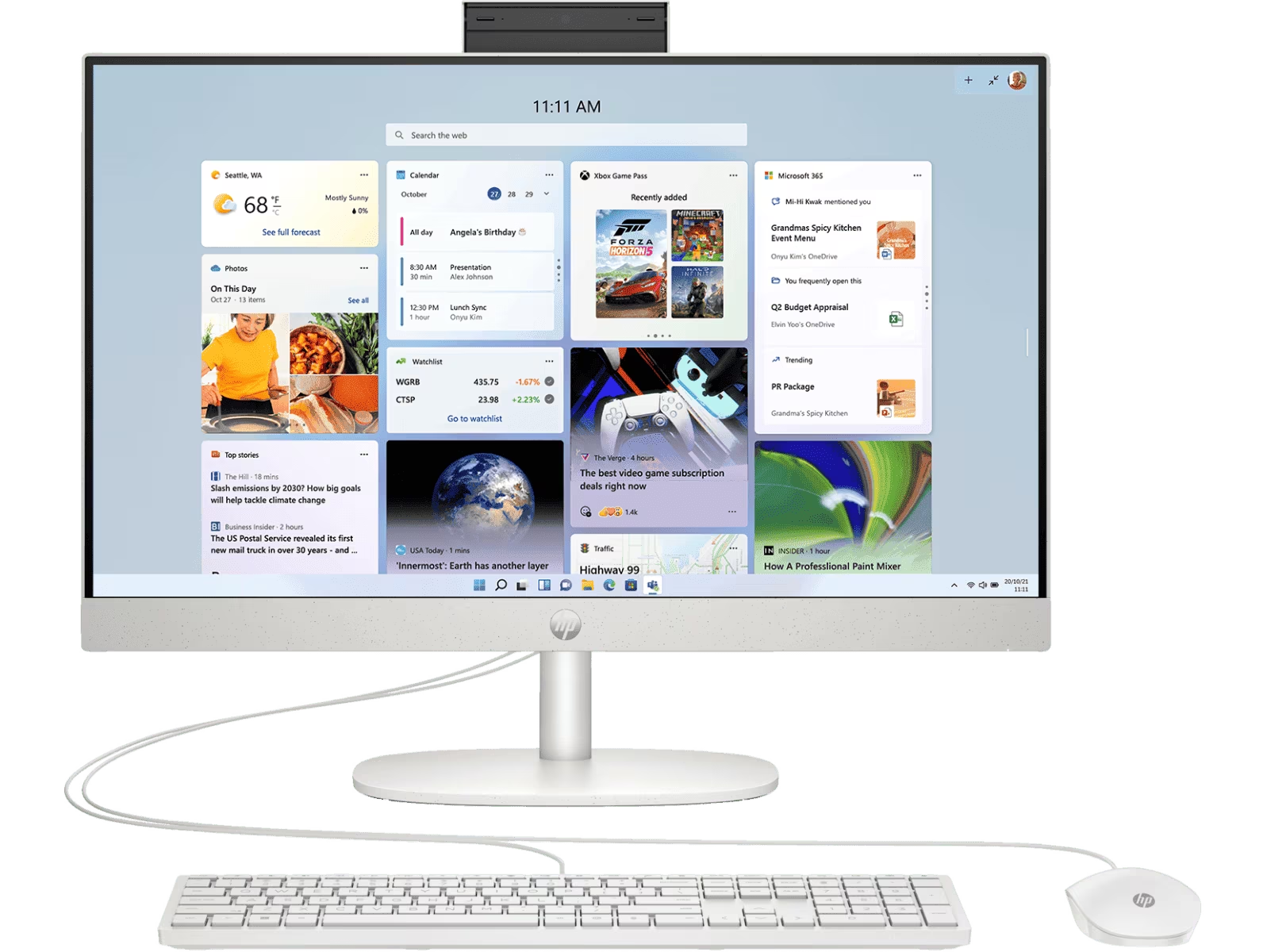
The HP 23.8 inch All-in-One Desktop PC AI 24-cr2000a suits a permanent desk where a built-in display can reduce the number of separate pieces to arrange. Its named 23.8-inch screen size gives buyers a clear starting point for checking desk fit and viewing distance. It may be worth comparing for a family study area, reception point or home office that needs a single, tidy workstation.
Read the exact Australian listing for the configuration details that affect your work: processor, memory, storage, included keyboard and mouse, wireless features, camera and available connections. A broad “AI” product label does not, by itself, explain how a particular workload will perform. Match the listed components to the apps you actually use, and verify any software or AI feature requirements separately.
The trade-off is flexibility. A built-in screen makes the desktop less modular than a separate monitor and compact PC. Check the HP all-in-one product details if the included display is central to your decision. If you already own a suitable display, or expect to replace the screen independently, compare a small desktop instead. For a shared household, check that the display height and connection options suit the people who will use it.
For a space-first shortlist, the HP 23.8 inch All-in-One Desktop PC AI 24-cr2000a gives you a specific screen size to assess rather than an open-ended desktop category. You can review the HP all-in-one listing for its current configuration, then compare its physical dimensions with your available surface. The Australian product page is also where to confirm the bundled accessories. For a desk-first comparison, revisit the HP AI all-in-one configuration after measuring.
- Check screen dimensions.
- Confirm included accessories.
- Match ports to your setup.
Do you need to move the computer during the week?
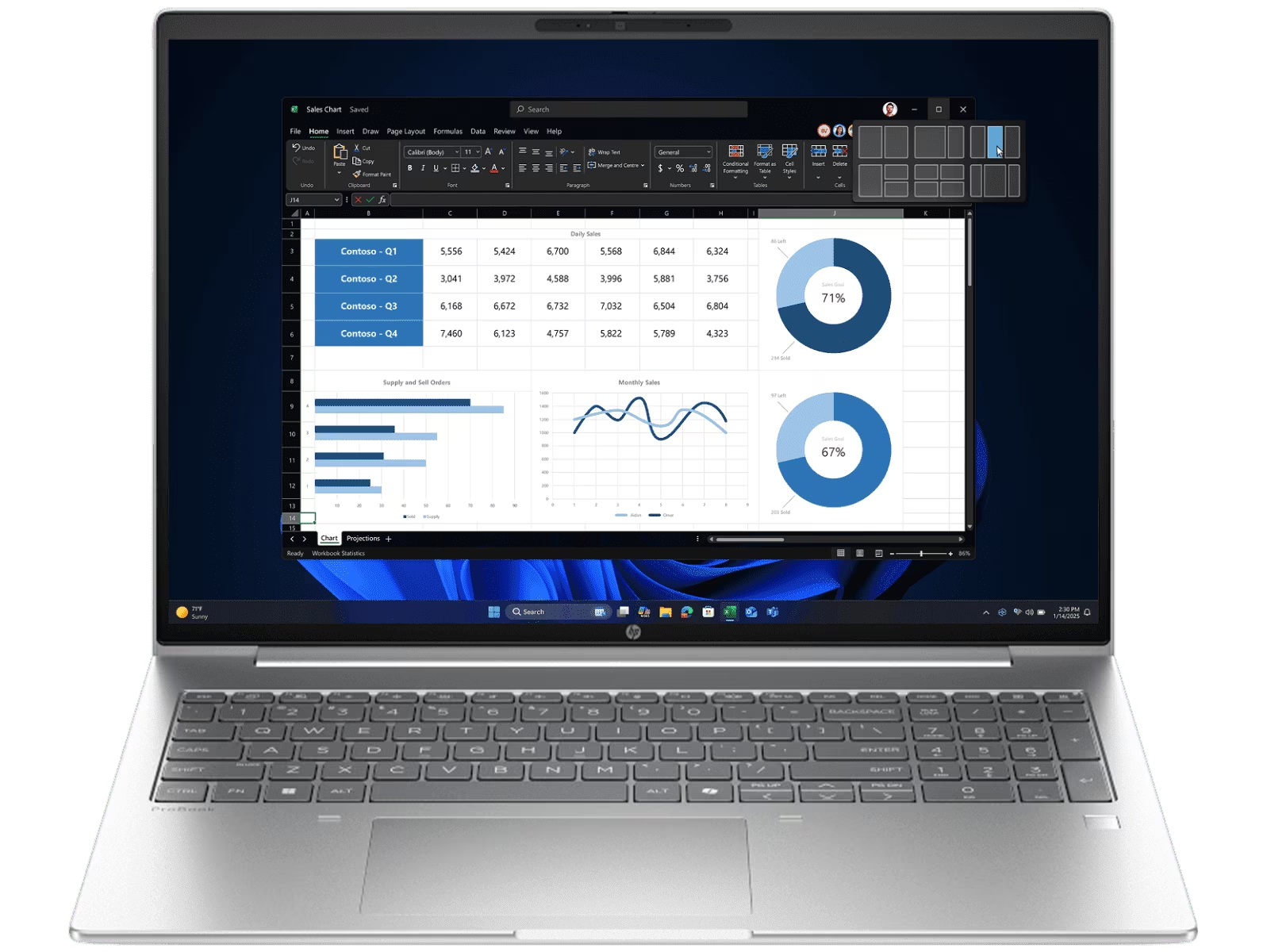
If your work shifts between home, campus and an office, a notebook avoids rebuilding a setup at every location. The HP ProBook 4 G1i 16-inch Notebook AI PC has a larger notebook display format that may be useful when you want more screen area while still carrying one device. The HP EliteBook 6 G1i 16-inch Notebook AI PC is another 16-inch option in HP’s business range; compare its precise configuration and business features against the ProBook page rather than assuming the family name settles the choice.
Choose the notebook path by checking how you will use it away from a desk. A larger display can help with side-by-side documents, but the chassis occupies more bag space than a smaller notebook. Check listed dimensions and weight, battery information, display resolution, ports and charging details. If you connect to a monitor at home, confirm that the notebook supports the connection method you plan to use.
- Compare listed weight and battery information.
- Check the display and port details.
- Match configuration to your software.
Workload is the next filter. Browser tabs and documents may need a different configuration from video editing, development tools or large spreadsheets. Read the memory and storage values on the exact listing, and compare the processor tier with the software maker’s requirements. The model family name is not a substitute for checking the selected configuration.
Use the Australian product pages as a matched pair: check the HP ProBook 4 G1i 16-inch details and check the HP EliteBook 6 G1i 16-inch details. Compare the same essentials on both pages, including included support, ports, display and available configurations. Reopen the EliteBook Australia listing when checking the selected display and memory. The ProBook configuration page should be checked against the same workload. Keep the EliteBook details nearby while checking ports, then compare the ProBook details for the same connections. The recommendation depends on those live specifications and your workload, not on an assumed hierarchy between the families. You can return to the ProBook listing and EliteBook listing to check final configuration differences before deciding.
- For frequent travel: prioritise listed weight, battery information and charging options.
- For desk-heavy work: weigh screen size and docking or monitor connections.
- For demanding software: match processor, memory and graphics details to the application requirements.
Would a compact desktop suit a desk that already has a monitor?
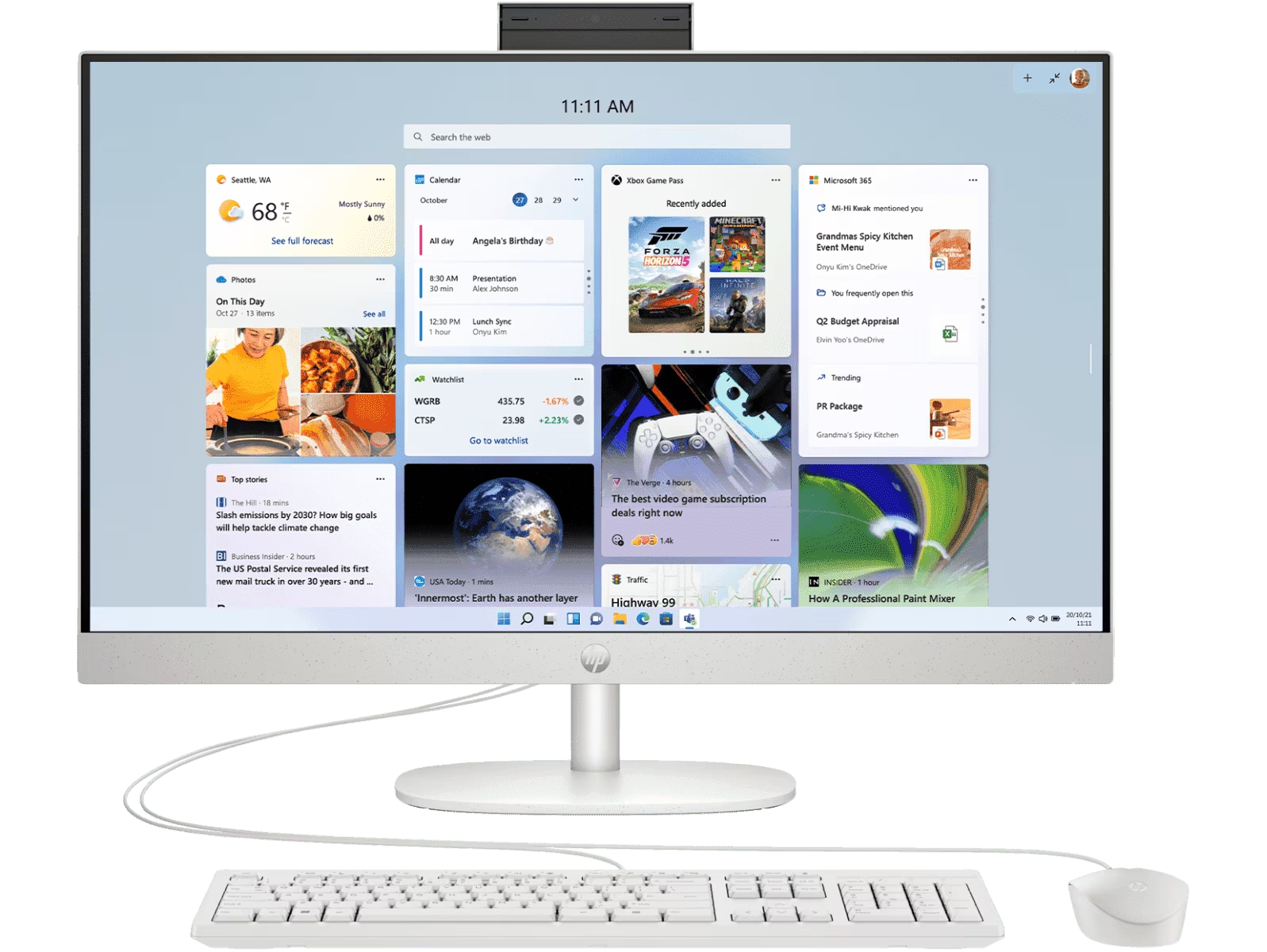
A compact desktop can make sense if you rarely move the computer and already have a screen that meets your needs. Compare that scenario with the all-in-one listing if you do not already own a display. The HP EliteDesk 8 Mini G1i Desktop AI PC is a small-form desktop option to investigate for that arrangement. Check what the particular package includes and whether it has the ports needed for your display, wired network, external storage and everyday accessories.
This route separates the computer from the display, which can make replacement choices more flexible. It also means the buyer must account for both pieces. Confirm monitor compatibility, cable type and mounting or placement requirements, then add the cost of any missing display or peripherals when comparing the overall setup. We do not infer a price here because the store can update configurations and current pricing.
Small desktop dimensions are useful only if ventilation and access remain clear. Look at the product page’s size information and leave room for cables and airflow. If the computer will sit behind a monitor or under a desk, check how its ports can still be reached. A mini PC may reduce visible equipment, but it does not remove the need to plan the surrounding setup.
Which product details should you verify before deciding?
Use the same checklist on every shortlisted page. It prevents a tidy form factor or familiar range name from overshadowing details that affect daily use.
- Configuration: match processor, memory, storage and graphics to your actual apps.
- Connections: verify display outputs, USB ports, audio and networking for your equipment.
- Included items: confirm whether the listing includes a keyboard, mouse, adapter or other accessory you need.
- Dimensions: compare the full device size with desk, shelf and bag measurements.
- Support and delivery: read the store’s current local terms and product-specific warranty information.
Then compare the complete setup rather than the computer alone. A notebook might need a dock or external display for comfortable long sessions. An all-in-one might already provide the screen but offer less flexibility if you want to change that screen later. A compact desktop can reuse existing equipment, provided the connections match. Those additions and constraints shape the real decision more than a broad category name.
How do the three routes compare?
The short table is a starting point, not a ranking. Choose the product route whose compromises fit your room and routine, then confirm the actual live configuration.
| Product | Best for | Check next |
|---|---|---|
| HP 23.8 inch All-in-One Desktop PC AI 24-cr2000a | A fixed shared desk with a built-in display | See details |
| HP EliteBook 6 G1i 16-inch Notebook AI PC | Mobile work with a larger notebook screen | See details |
| HP ProBook 4 G1i 16-inch Notebook AI PC | A second 16-inch business notebook configuration to compare | See details |
| HP EliteDesk 8 Mini G1i Desktop AI PC | A fixed desk with a monitor already in place | See details |
The all-in-one has the clearest fit when a permanent screen-and-computer unit is useful. The notebooks make more sense when the computer must travel, and their differences need to be established from the live configurations. An EliteDesk Mini can be the better form factor if you already have a monitor, but its full setup requires those extra components. There is no single winner without knowing the workspace.
Which setup is the quickest fit by workspace?
- Shared, fixed desk: compare the all-in-one, with the built-in screen as its main convenience and reduced display flexibility as its trade-off.
- Work that moves: compare the ProBook and EliteBook notebooks; their trade-offs depend on the exact configuration, portability and support details.
- Existing monitor: consider the EliteDesk Mini, while accounting for the separate display and peripherals.
- Record the exact configuration name.
- Confirm display, ports and included accessories.
- Check the live support and delivery terms.
What should you do if the shortlist still feels close?
Return to the one constraint you cannot compromise on. If that is desk space, measure again and compare the listed dimensions. If it is mobility, compare notebook weight and battery details. If it is a particular application, use that application’s recommended requirements as the baseline. This narrows the choice more reliably than comparing every specification at once.
- Write down the key physical constraint.
- Check the exact model configuration.
- Confirm support and delivery terms.
Before checkout, make a quick side-by-side note with each model’s exact configuration, screen arrangement, ports, included accessories and support terms. Check for differences between selectable configurations on the same product page. Confirm the page is for the Australian store and that the model you selected is the one whose details you reviewed.
For a practical shortlist, begin with the HP 23.8 inch All-in-One Desktop PC AI 24-cr2000a if the computer will stay on a shared desk; compare the HP EliteBook 6 G1i 16-inch Notebook AI PC and HP ProBook 4 G1i 16-inch Notebook AI PC if you need to carry your work. Keep the HP EliteDesk 8 Mini G1i Desktop AI PC in view when an existing monitor makes a separate compact computer more sensible.
What should you check before choosing?
Is a monitor included? The all-in-one names a built-in display, while a compact desktop is a separate computer. Verify the exact included items on the selected product page.
Can a notebook drive an external screen? Check the model’s listed ports and supported display connections, then match them to your monitor and cable.
How should configurations be compared? Compare processor, memory, storage, graphics, display and support on the exact Australian listing. Do not assume every configuration in a model family is identical.
Ready to match an HP computer to your desk?
We recommend choosing by location first, then checking the exact configuration and connections against your routine. That approach makes the all-in-one, notebook and compact desktop options easier to assess on their real strengths.
One limitation remains: product availability, selectable configurations and listed specifications can change. Confirm the live Australian page before making a decision, especially if a particular port, accessory or display feature is essential.

Leave a Comment