


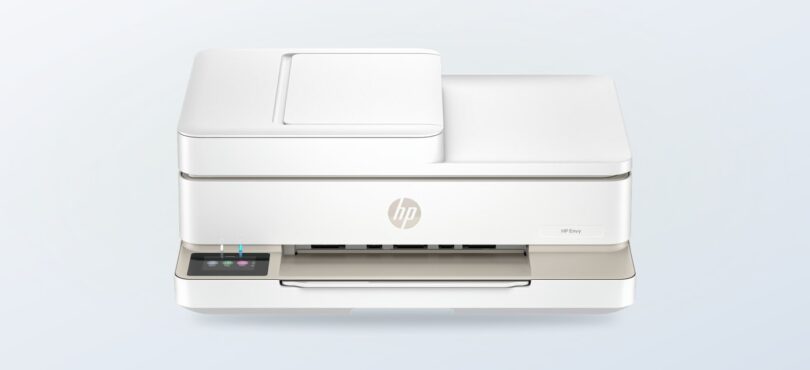
When home printing means school forms, recipes, return labels and the occasional photo, a basic printer can feel limiting while a full office machine may be more than the household needs. The HP Envy 6530 All-in-One Printer sits in that in-between space.
We reviewed the Australian product information for this model, rather than testing it in person. HP describes it as an A4 colour inkjet all-in-one for home use, with print, scan and copy functions. That combination makes it worth considering if one compact device can handle varied family tasks.
The question is less whether it can do everything a printer can do, and more whether its mix of convenience, print capability and ongoing ink decisions matches your routine. The listing provides a useful starting point, but the live specifications and stock status should guide the final choice.
Some links in this article are affiliate links: if you make a purchase through them, we may receive a small commission.Before you read on: the Envy 6530 looks best suited to a home that wants printing, scanning and copying in one colour device, plus a touchscreen and wireless connection. Its fit is less clear for heavy-volume office work or buyers who mainly need basic document printing; compare the live listing with a simpler DeskJet and a more work-focused OfficeJet Pro before choosing.
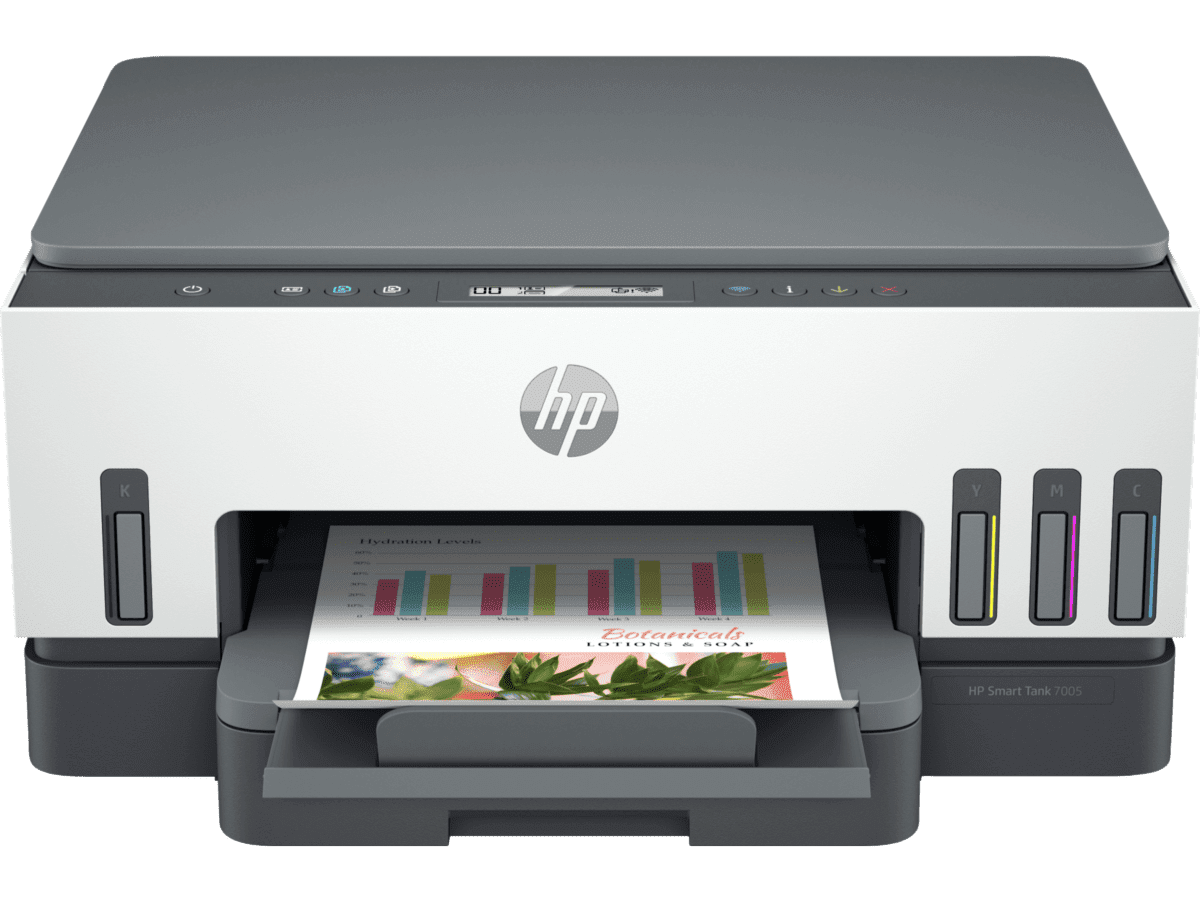
The DeskJet is a useful visual reference for a simpler home setup; the Envy 6530 listing specifically names touchscreen controls alongside its print, scan and copy functions.
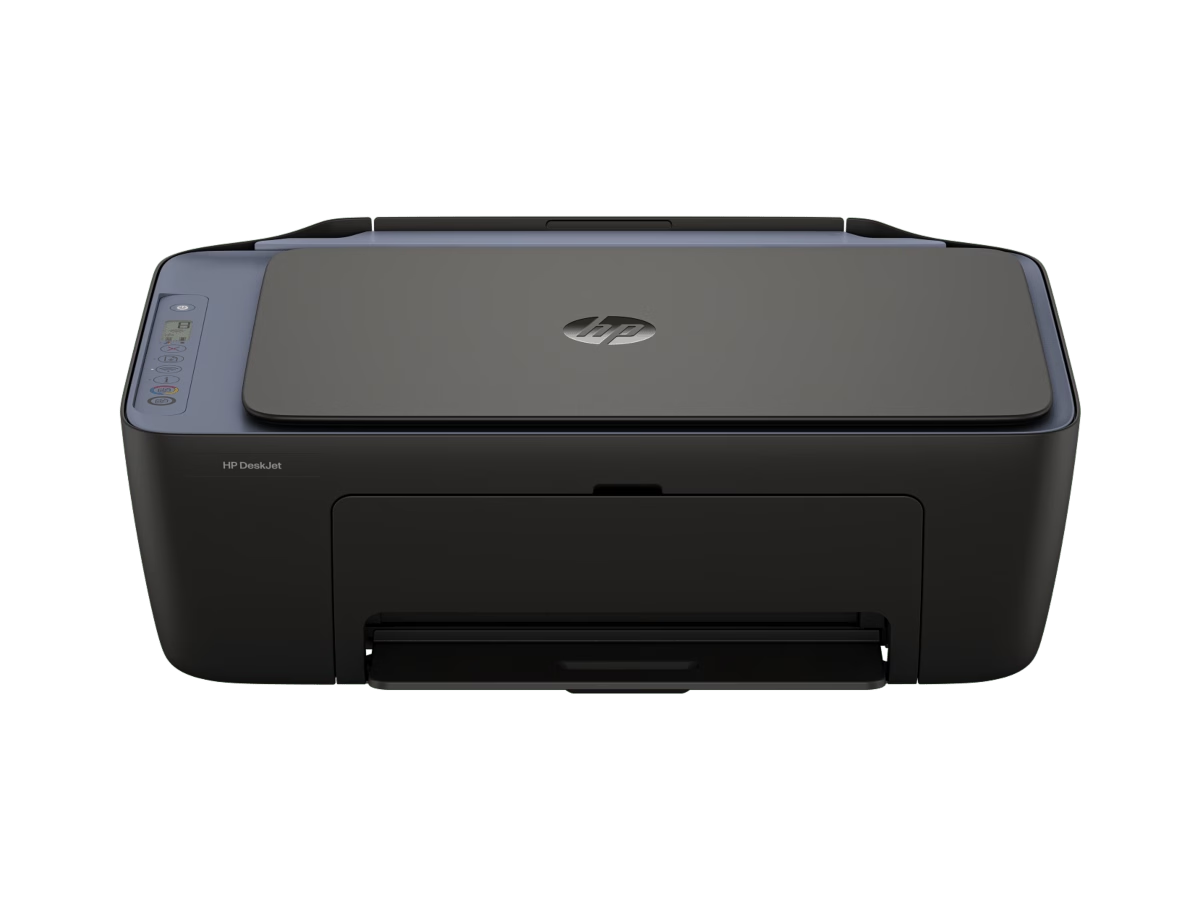
This simpler all-in-one provides context for the Envy’s broader home role.
What does the HP Envy 6530 include for a home desk?
HP’s Australian listing calls the HP Envy 6530 All-in-One Printer an A4 colour inkjet model with print, scan and copy functions. It also identifies a touchscreen control panel and USB and Wi-Fi connectivity. Those are straightforward features, but together they address the typical home need to print from more than one device and handle paper documents without a separate scanner.
The store’s headline describes the printer as “You dream it. Envy does it.” That is marketing language rather than a specific performance measure, so we would put more weight on the functions and specifications in the product detail. The available listing marks the model in stock, but stock can change; confirm the current status for the HP Envy 6530 listing on the Australian product page before making plans.
- Three core jobs: print, scan and copy, with no separate scanner purchase.
- Colour inkjet output: a natural match for mixed text and colour pages at home.
- Touchscreen controls: an on-device interface for common printer tasks.
- Wireless and USB options: useful for connected home setups as well as a direct cable connection.
That feature set matters most when several people share the printer or when documents arrive in several formats. A parent might use the Envy 6530 to print a permission slip, scan a signed form and copy a page for a folder. The all-in-one arrangement can reduce equipment clutter, though it still needs a suitable place, paper storage and access to ink.
Compared with the HP DeskJet 2921 All-in-One Printer, the Envy proposition is less about printing being simple and more about added control and a more capable-feeling everyday setup. HP’s DeskJet listing uses the phrase “Home printing made super simple” and also describes an all-in-one home device. If your jobs are mostly occasional forms and labels, the DeskJet 2921 may be enough; if scanning and handling a wider mix of tasks are regular, inspect the Envy’s exact controls and specifications carefully.
Where does this printer make the most sense?
The Envy 6530 is most persuasive for a household that prints in bursts and values a single device for documents, colour pages and scanning. It can serve a shared study nook, a student’s room or a family command centre, provided the owner is comfortable managing an inkjet printer and keeping supplies available.
Consider it when your routine includes a mix of tasks such as:
- printing assignments and reading material at home;
- copying signed forms or household paperwork;
- scanning documents to keep a digital copy;
- printing colour pages where a monochrome laser printer would be restrictive.
Those examples follow from the listed functions; they are not claims about speed or output quality in a particular room. HP’s listing gives print speed figures for black and colour, so check the precise specifications on the current page if turnaround time matters to you. Page coverage, chosen quality settings, connection conditions and the type of work can affect how a printer feels in everyday use.
There is a service angle too: the product page says the model is Instant Ink enabled and includes a stated introductory service period. The value of the HP Instant Ink service depends on how much you print and the plan details available at sign-up. Read the current Australian terms, page limits, rollover rules and cancellation details directly before enrolling. A plan that suits a steady printing household may make little sense for someone who prints only a few times per year.
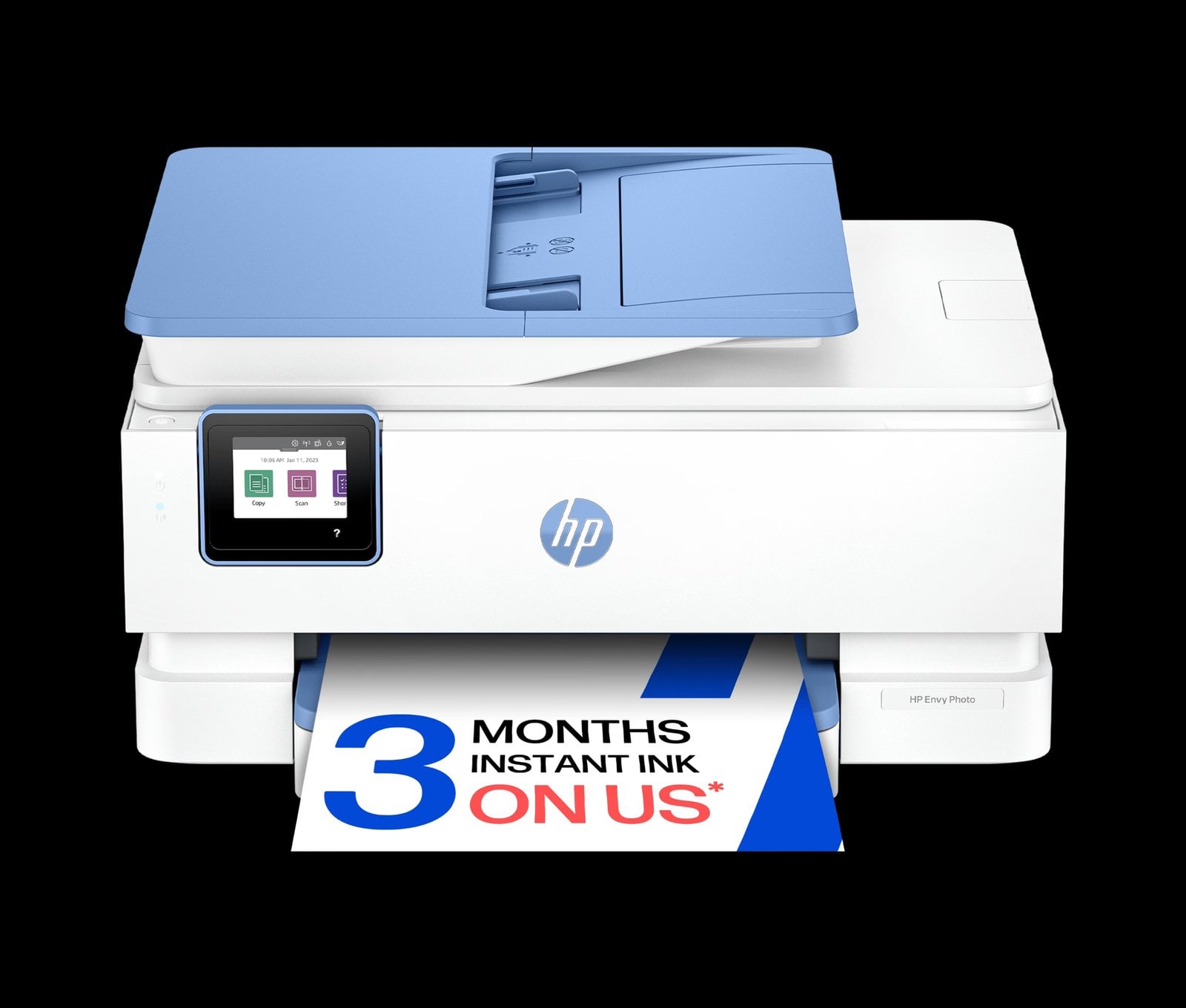
For photo-heavy use, the HP Envy Photo 7930 All-in-One Printer is a more explicit photo-led option in the same store, with print, scan and copy capability. The Photo 7930 listing currently says out of stock, so it is a reference point rather than an immediately available recommendation. Check that status again if photo printing is the deciding factor.
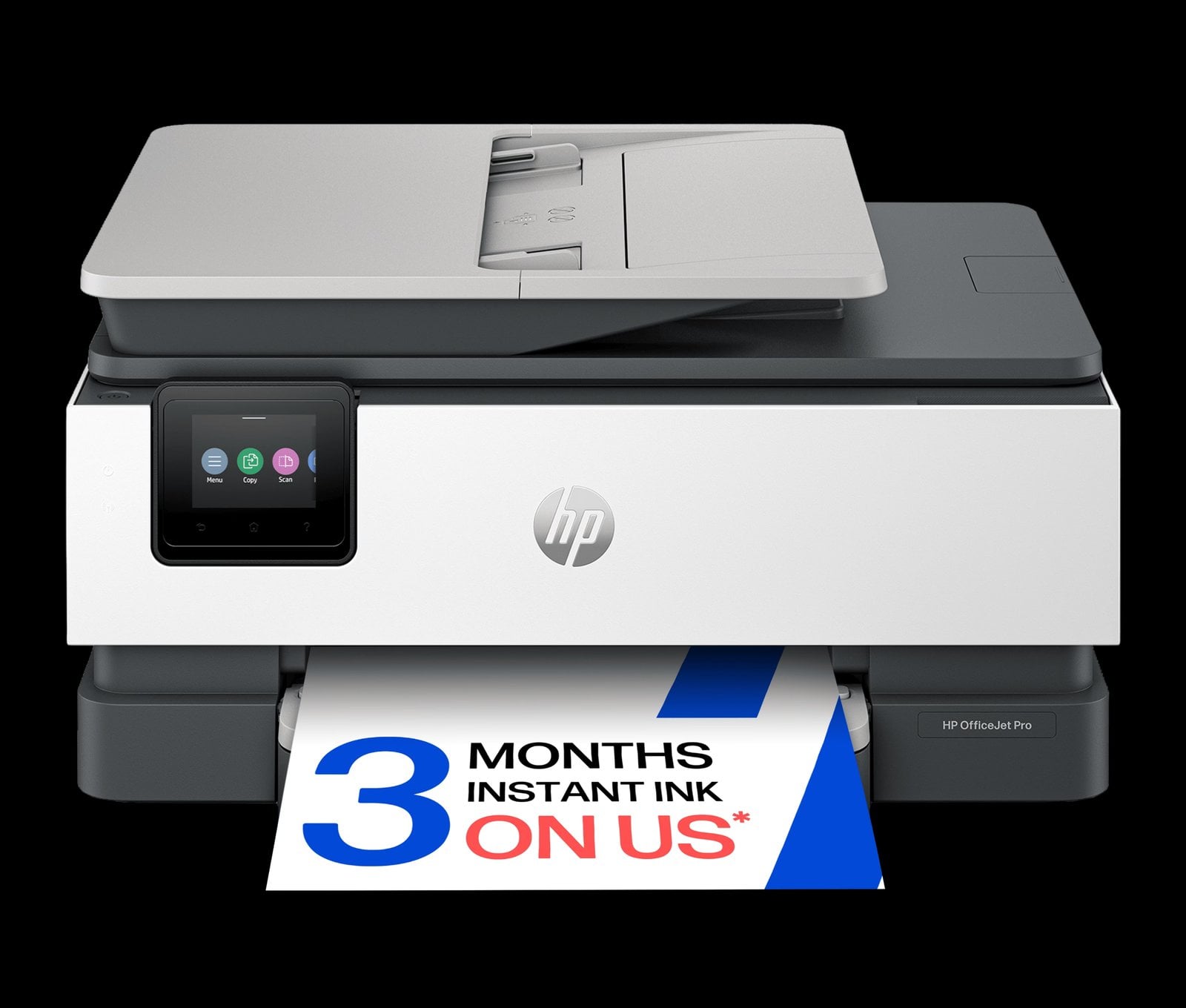
The household with frequent long document runs, shared work tasks or a higher need for office functions should also look at an OfficeJet Pro. The HP OfficeJet Pro 8120e All-in-One Printer sits in the business-printer section. That category placement alone does not prove the right choice, but it is a good prompt to compare capacity, paper handling, print speed and the supported features on its own Australian product page.
- Choose Envy 6530: a mixed-use home needs colour printing, scanning and copying.
- Consider DeskJet 2921: the routine is light and simplicity is the priority.
- Compare Envy Photo 7930: photo use is central, once stock is available.
- Compare OfficeJet Pro 8120e: household printing overlaps with regular work documents.
What are the practical limits to weigh?
The main trade-off is the familiar one with colour inkjet devices: the purchase decision is only part of the running-cost picture. Ink replacement frequency depends on how often you print, what you print and how the printer is maintained. The Australian listing indicates Instant Ink eligibility, but that does not automatically make a plan economical. Estimate your own usage and review the live service terms, including the plan’s monthly page allowance and what happens when your needs change.
Next, set expectations around throughput. HP lists speeds, but a headline rate does not describe every job; colour pages, image-heavy documents and preferred quality settings can take longer than a simple text page. If your household routinely prints substantial packs of documents, compare the Envy 6530 against the business-focused OfficeJet Pro 8120e on workload details rather than on family resemblance.
Also verify the dimensions, included components, warranty, delivery details and compatibility notes before buying. The Envy 6530 store page is the authority for the current Australian configuration, and product names can conceal differences between variants. If a shared printer will live in a small room, its footprint and paper access may matter as much as the feature list.
- Check whether the currently listed SKU is in stock.
- Confirm connectivity and device compatibility for the computers and phones in your home.
- Review current ink options and any subscription conditions before counting them as a benefit.
- Compare the printer’s full listed dimensions with the space where it will sit.
Buying direct can make product details and store support easy to find in one place, and HP’s Australian site presents product specifications, stock and delivery information alongside the item. That is a useful buying experience when you already know the job you need the printer to do. It still asks the buyer to make the comparison work: look at the detail tabs, note the consumables, and keep the live listing open while deciding.
How does the Envy 6530 compare with nearby choices?
This is a compact shortlist, not a claim that the models are interchangeable. Each page describes a different emphasis, and availability can move. Click through to the product pages for current Australian price, stock and full configuration. The HP product catalog also includes printers such as wide-format OfficeJet options, but most households do not need to widen the shortlist unless their work specifically calls for larger paper.
| Product | Best for | |
|---|---|---|
| HP Envy 6530 | Mixed colour home printing, scanning and copying | See price |
| HP DeskJet 2921 | Simple, occasional home printing | See price |
| HP Envy Photo 7930 | Photo-oriented home use; listing shows out of stock | See price |
| HP OfficeJet Pro 8120e | Compare for a more work-focused routine | See price |
The main recommendation is straightforward: if the Envy 6530’s listed features match your household, it is the clearest middle-ground starting point among these options. The DeskJet is the simpler comparison; the Photo model makes more sense to investigate when photos dominate; and the OfficeJet Pro deserves a look for sustained work needs.
Ready to choose a home printer?
We would start with the HP Envy 6530 for a home that needs a colour all-in-one and is likely to use scanning and copying as well as printing. Its available features map neatly to common household jobs, and its Australian page currently lists it in stock.
The honest limitation is that ink costs and subscription value depend on your own print pattern, while the product listing cannot tell us how it will perform in your particular space. Check the live product specifications, stock and current price, then compare the DeskJet if your needs are lighter or the OfficeJet Pro if your workload is heavier.


Leave a Comment